According to the relevant laws and regulations of mainland China, you can only use social
acceleration after passing real-name authentication.

According to the relevant laws and regulations of mainland China, you can only use social
acceleration after passing real-name authentication.According
to the relevant laws and regulations of mainland China, you can only use social acceleration after passing
real-name authentication.



[Can't Connect?] iOS & Android Connection Troubleshooting Guide
#Tutorials & Guides
1. First Check if It's a System Issue
[iOS Users Look Here]
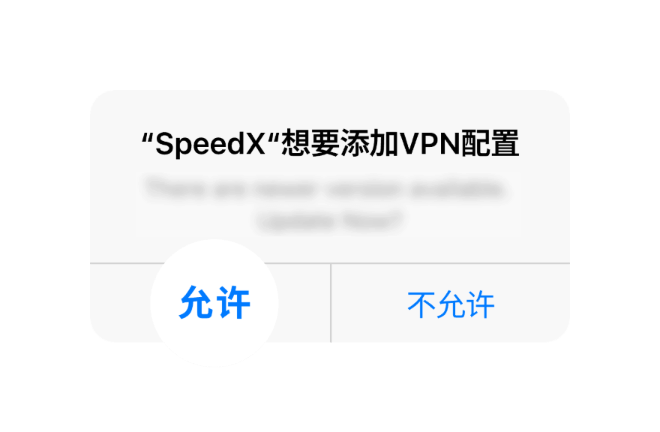
1. Authorization Confirmation: On first use, the system will pop up a "VPN Configuration" request. Be sure to
click "Allow" and verify with fingerprint/face ID.
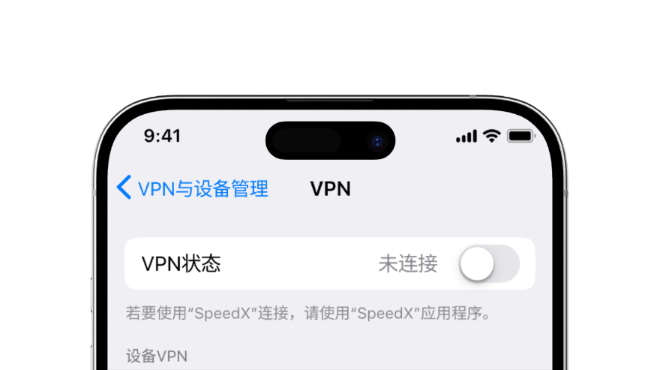
2. Manual Toggle: Go to phone "Settings > General > VPN" and Device Management, check if VPN configuration is
activated, try manually turning it off and on again.
3. Network Switching: Try switching between Wi-Fi and cellular data, as the current network itself may not be
able to access our servers.
[Android Users Look Here]
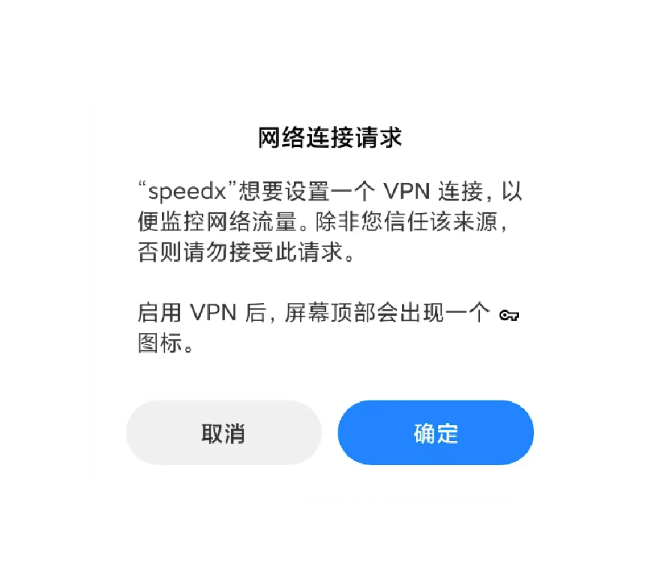
1. IKEv2 Protocol: If using IKEv2 protocol, you also need to agree to create VPN
connection when prompted by the system.
2. Background Restrictions: Go to phone "Battery and Performance" settings, ensure our App is not restricted
when running in background, avoid being "cleaned up" by the
system.
3. Time Settings: Check if phone system date and time are accurate, whether
"Automatic Settings" is enabled.
2. Then Check if It's a Network Issue
If you use WiFi acceleration, please confirm whether your connected WiFi has external
network access permissions
① If you are using public WiFi (such as CMCC), you may need to contact the WiFi provider to obtain external
network access permissions, usually by opening a webpage to
fill in authentication information.
② If you use mobile data acceleration, please confirm that your phone plan has remaining
data or balance for the current month.
③ If WiFi or mobile data is not enabled, please go to system settings and enable at least
one of them.
④ If none of the above situations apply, you may be in a location with poor network signal. We recommend
moving to a place with better signal or using WiFi/mobile data
with better signal for acceleration.
⑤ You have opened other VPN-type applications. Please close these applications in the background, and after
closing, confirm that your current system VPN connection is
closed, then open SpeedX for acceleration.


 service@speedx.link



© 2025 All rights reserved.SpeedX Nantong TuiLiang
Technology Co., Ltd

增值电信业务经营许可证:
B1-20252608